
RF Explorer Presets
The Presets allow you to save and recall custom configurations using presets. These presets store your preferred frequency, amplitude, active traces, Radio Standard and marker settings, making it easy to switch between different measurement setups instantly.
Load
Action option to load stored preset values into current configuration.
Save
Action option to save current configuration into the selected preset. This option cannot be undone, care should be taken to not overwrite another valid preset.
Delete
Remove selected preset configuration. “Default” preset cannot be deleted.
Back
Return to main menu and current visual mode (such as Spectrum Analyzer).
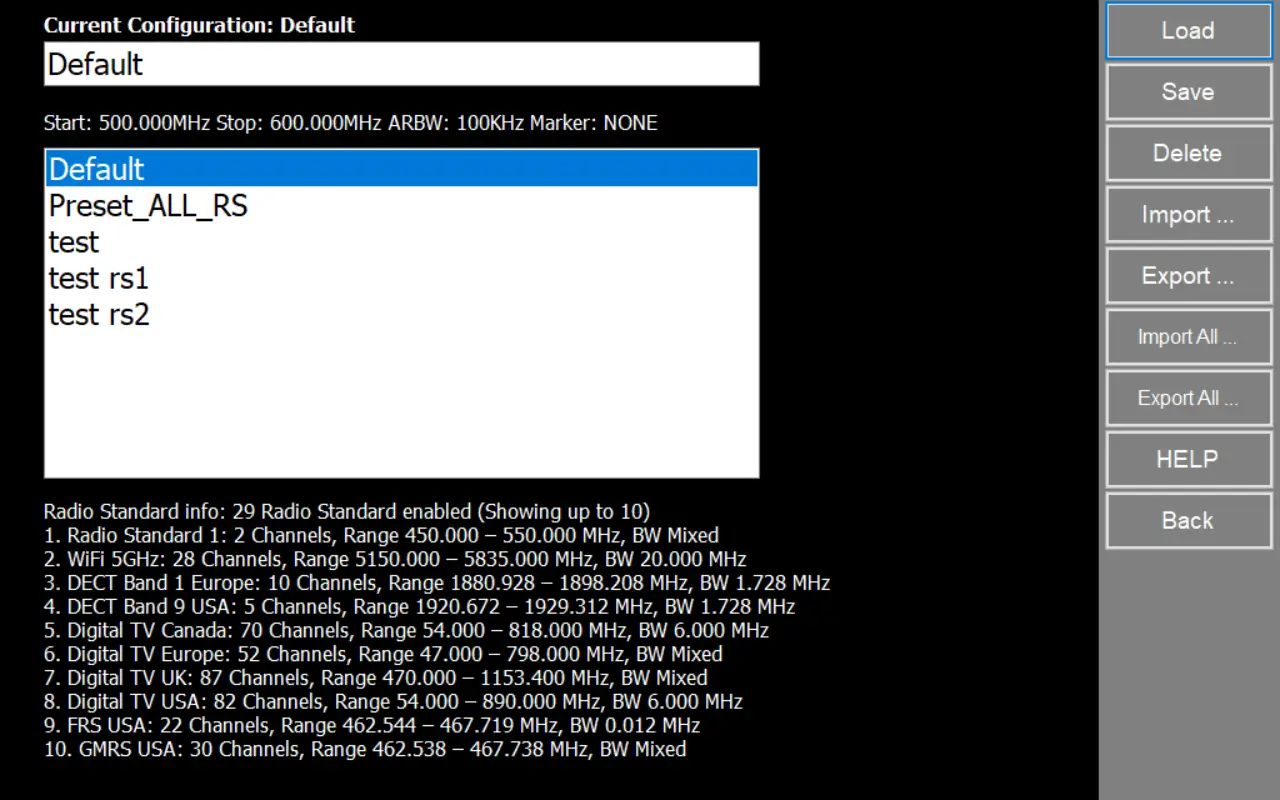
How to create a new Preset
Click on [Save] to store the configuration
Import/Export Presets
Use these buttons to move Radio Standards between PCs, projects, or users.
Use these buttons to move Radio Standards between PCs, projects, or users.
Import ...
Loads one Preset file from disk and adds it to your inventory/configuration.
Export ...
Saves the selected Preset to a file
Import All ...
Loads a complete set of Presets from a file (bulk import).
Export All ...
Saves your full Presets library to one file (bulk export).
Why file export/import helps
- Easy sharing: Send the file by email/chat and import it on another PC.
- Fast migration: Move your full library without re-creating channels manually.
- Safe backups: Export before edits or updates so you can restore quickly.
Notes
- Load Presets only will be effective while device is capturing data, not when a file has been loaded.
- For handheld models, these presets in the application are not the same presets as can be defined inside the device. A future version will include and help to coordinate both kinds: application and device presets.
- The Import/Export Presets feature is available from v1.26 and later.
- Presets are saved as .rfeprx files.
- The full Radio Standard configuration is included in these files and will be imported/exported with the Preset. When you import a Preset, its Radio Standards are automatically added to the Radio Standard Inventory so the preset can be used correctly.
Radio Standard details (brief)
At the bottom of the screen you’ll see a short Radio Standard info list. This is a quick overview of the Radio Standards currently enabled in your Preset configuration.
What you’ll see per item:
- Name: The Radio Standard name (example: WiFi 5GHz).
- Channels: Number of channels defined.
- Range (MHz): Start–stop frequency coverage.
- BW (MHz): Reference channel bandwidth (Mixed means channels in this standard use different bandwidths).